Shopify product page accessibility: a section-by-section guide
Check every part of a Shopify product page for accessibility, from the title and gallery to the price, add to cart, size chart, reviews and app add-ons.
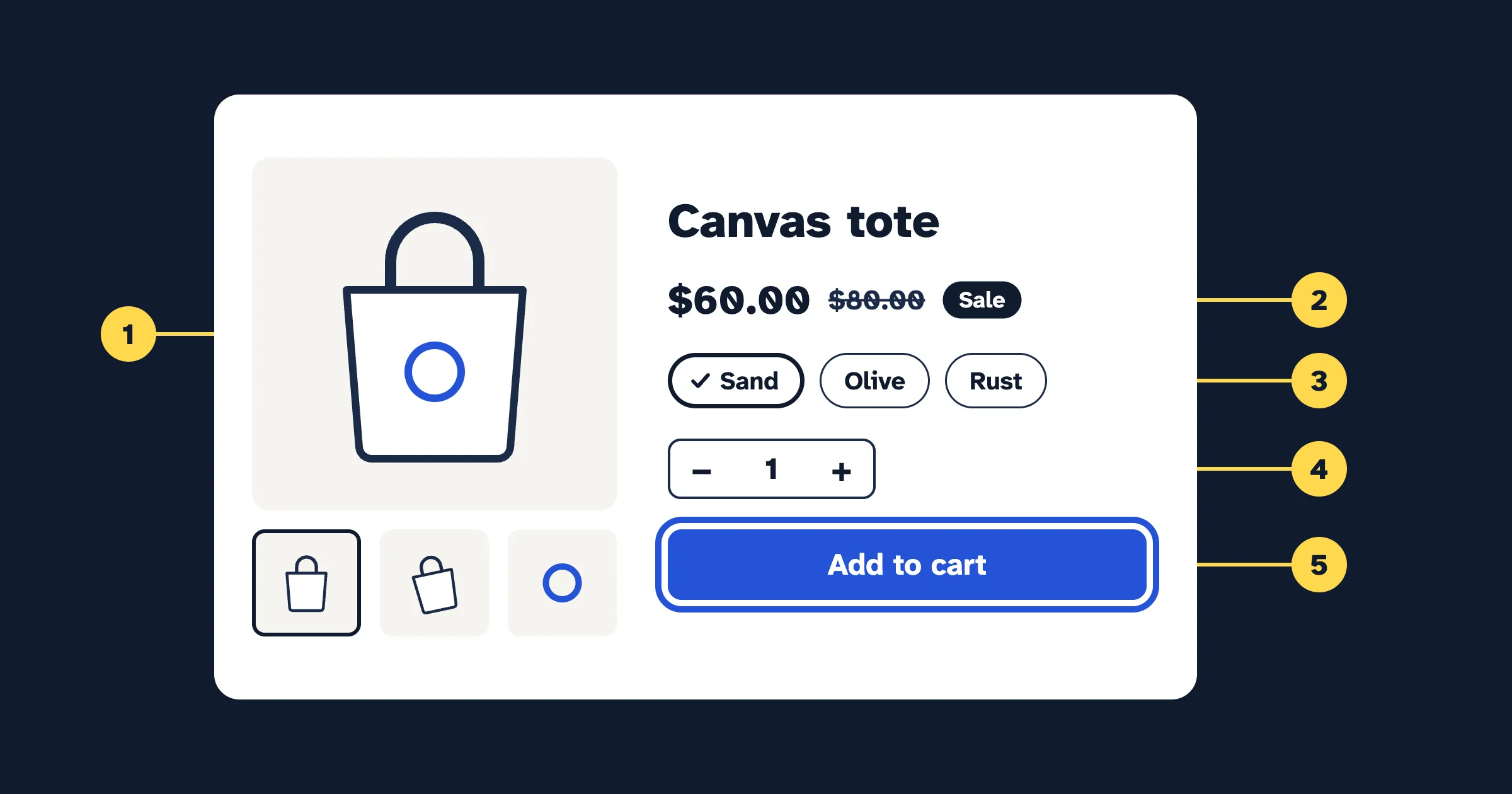
A Shopify product page is accessible when every shopper can find the product’s name, learn what each photo shows, understand the price, choose options, add to cart and know it worked, with a mouse, a keyboard, a screen reader or 200% zoom. Shopify’s Dawn theme gets most of the markup right, so problems usually come from content, such as size charts saved as images, and from apps that add sticky bars, timers and review widgets. Here’s the page from top to bottom, with what to check in each part.
The Dawn details below were checked against Dawn 16, Shopify’s open-source theme on GitHub. The checks apply to any theme.
Is the product title the page’s main heading?
It should be, and only once. Screen reader users move around a page by its headings, and the main heading tells them where they’ve landed (1.3.1 Info and Relationships, Level A; 2.4.6 Headings and Labels, Level AA). Dawn’s Title block prints the product title as the page’s h1. Two things undo this:
- Removing the Title block because a designer wanted the name somewhere else. The page then has no main heading. Keep the block and restyle it.
- Starting the description at Heading 1. Shopify’s rich text editor offers Heading 1 to 6. The title is already the h1, so start the description at Heading 2.
Can every shopper use the media gallery?
Alt text for every photo
Each product photo needs alt text that says what it shows (1.1.1 Non-text Content, Level A). Dawn uses the alt text saved on each media item in your admin; our guides on writing alt text and adding it to every product at once cover the rest. In a gallery, describe what’s different in each photo (“Back view, showing the zip pocket”), not the product name five times.
Thumbnails and the lightbox
Thumbnails must be buttons with names that a keyboard can reach, not pictures with a click handler (2.1.1 Keyboard, Level A; 4.1.2 Name, Role, Value, Level A). In Dawn, each thumbnail is a button named “Load image 2 in gallery view”, described by that image’s alt text.
An image lightbox is a dialog: focus moves into it, stays there, Esc closes it, and focus goes back to the image it was opened from (2.4.3 Focus Order, Level A). Dawn’s Zoom setting, in the Product information section, offers Open lightbox, Click and hover, or No zoom. Its lightbox is a dialog named “Media gallery” that does all four. Gallery apps that replace it often fail here: focus stays behind, with no way out except a mouse.
Video and 3D models
- Captions. A video with speech needs captions (1.2.2 Captions (Prerecorded), Level A). Shopify lets you upload a video or embed a YouTube or Vimeo link. Both platforms let you add captions there. For an uploaded file, burn open captions into the video before uploading; W3C counts those as captions.
- No surprise motion or sound. Movement that starts on its own and lasts more than five seconds needs a way to pause, stop or hide it (2.2.2 Pause, Stop, Hide, Level A), and sound that plays automatically for more than 3 seconds needs a way to stop it (1.4.2 Audio Control, Level A). Dawn loads a video only when a shopper presses “Play video”, and its Loop video setting is off by default. Video apps that autoplay a looping clip are the usual offenders.
- 3D models. Treat a model as an extra. Keep photos with alt text, so shoppers who can’t use the viewer still see every angle.
Is the price clear without the strike-through?
A sale is usually shown as a crossed-out regular price next to the new one. Many screen readers don’t announce a strike-through, so a shopper hears “$80.00 $60.00” with no hint which applies. Shopify’s theme accessibility guidance asks that sale and regular prices are “marked differently, both visually and by using markup for screen readers” (1.3.1 again). A red sale price alone isn’t enough either (1.4.1 Use of Color, Level A). Dawn’s price block, simplified:
<div role="status">
  <span class="visually-hidden">Regular price</span>
  <s>$80.00</s>
  <span class="visually-hidden">Sale price</span>
  <span>$60.00</span>
  <span class="badge">Sale</span>
</div>
Unit prices get a hidden “Unit price” label, and the Sale and Sold out badges are words. Because the block is a status region, screen readers announce the new price when a shopper picks another variant (4.1.3 Status Messages, Level AA). What breaks it: bundle and subscription widgets that print two unlabeled numbers, “Save 25%” badges drawn as images, and custom code that deletes the hidden spans because they “don’t show”.
Can shoppers choose options, set a quantity and add to cart?
The variant picker
Each value must be a real form control with a text name, with selected and sold-out states in words. Dawn builds it from radio buttons in a named group; our guide to variant pickers and swatches has the pattern and a test.
The quantity selector
The field needs a visible label and the minus and plus buttons need names (3.3.2 Labels or Instructions, Level A; 4.1.2). Dawn shows a “Quantity” label, and its buttons carry hidden text naming the product:
<button type="button" name="minus">
  <span class="visually-hidden">Decrease quantity for Linen shirt</span>
  <svg aria-hidden="true" focusable="false">...</svg>
</button>
Custom selectors often use bare, tiny icons, so a screen reader hears “button, button”. WCAG asks for targets of at least 24 by 24 CSS pixels, or enough space around each (2.5.8 Target Size (Minimum), Level AA); Shopify’s guidance asks for 44 by 44 on primary controls.
The add-to-cart button, and what happens next
Pressing the button has to tell everyone it worked: either focus moves into a dialog that says so, or the message is announced as a status (4.1.3). W3C’s own status message example is this case: text near the cart icon that changes after someone presses Add to Shopping Cart.
In Dawn, Theme settings › Cart › Type decides what happens. Popup notification opens a dialog named “Item added to your cart” that takes focus, closes on Esc and returns focus to the button. Drawer behaves the same way (see our cart drawer guide), and Page opens the cart page. Errors, such as a quantity limit, appear in an alert region, so they’re read out.
What breaks it: upsell apps whose “Added!” message vanishes without being announced, buttons that only turn green, and slide-out carts that don’t move focus. A message needs a status region that’s on the page from the start, filled in when the item is added:
<div role="status" class="cart-message"></div>Pickup availability
Dawn shows “Pickup available at” and the location as text, with a “View store information” button that opens a labeled dialog, closes on Esc and returns focus.
For Shopify stores
Find and fix accessibility issues on your store
CodeInspire Accessibility Tool adds an accessibility widget for your shoppers, audits your pages against WCAG, and gives you step-by-step fixes for your Shopify admin, theme editor or theme code.
Is the description easy to read and navigate?
Headings and lists
Use Heading 2 for sections (“Materials”, “Fit”, “Care”) and real bulleted lists for features. A bold line that looks like a heading isn’t one: screen readers can only jump to real headings (1.3.1).
Size charts as tables, not images
A size chart saved as a picture is an image of text (1.4.5 Images of Text, Level AA). It blurs when zoomed, can’t be translated, and can’t be read cell by cell. The rich text editor can insert tables in descriptions and pages. Build the chart once on a page, then show it with Dawn’s Pop-up block, a link that opens the page in a dialog, or a Collapsible row that takes its content from the page. Use the editor’s Show HTML button to check that it has header cells, so each number is announced with its size:
<table>
  <caption>Shirt sizes, in inches</caption>
  <tr><th scope="col">Size</th><th scope="col">Chest</th><th scope="col">Length</th></tr>
  <tr><th scope="row">S</th><td>36–38</td><td>28</td></tr>
  <tr><th scope="row">M</th><td>39–41</td><td>29</td></tr>
</table>
Collapsible rows and tabs
Dawn’s Collapsible row uses the HTML details and summary elements, which open with Enter or Space, and its script sets aria-expanded so screen readers hear whether a row is open. Tab apps are riskier: many build tabs that only respond to a click. Check that Tab reaches each tab, Enter or Space opens it, and a screen reader says which is selected (2.1.1; 4.1.2).
Are reviews and recommendations announced clearly?
Star icons need a text equivalent (1.1.1). Dawn’s Product rating block, which needs a reviews app to supply the rating, draws the stars as one image named, for example, “4.5 out of 5 stars”, and reads the count as “12 total reviews”. Review apps add their own widget further down: check that filters and “Write a review” are named buttons and that the review form is labeled (see accessible forms).
Dawn’s Related products cards use the product’s title as link text. Recommendation carousels from apps need named arrow buttons and shouldn’t scroll on their own (2.2.2).
What do sticky bars, chat bubbles, timers and pop-ups break?
Sticky add-to-cart bars, chat bubbles and cookie banners cover things. A keyboard user who tabs to a link hidden behind a bar loses track of where they are. 2.4.11 Focus Not Obscured (Minimum), Level AA, new in WCAG 2.2, asks that the focused item is never entirely hidden by content you’ve added; W3C names sticky footers, sticky headers and non-modal dialogs. Its technique C43 uses scroll padding, so focused elements scroll clear of the bar:
/* Keep focused items clear of a sticky bar about 72px tall. */
html {
  scroll-padding-bottom: 88px;
}
Dawn has no sticky add-to-cart bar; these come from apps and custom code.
Countdown timers that tick every second are auto-updating content, and 2.2.2 asks for a way to pause, stop or hide them. Simpler: state the end in text, “Sale ends Sunday at midnight”. Never put a ticking timer in a live region, or a screen reader may read it every second.
Pop-ups for newsletters, discounts and “someone just bought this” notices need the same behavior as Dawn’s cart dialog: focus in, Esc out, focus back. If an app can’t behave, turn it off on product pages.
How do you test a product page in five minutes?
- Keyboard. Tab from the top of your best-selling product, through the skip link and thumbnails. Open the lightbox, close it with Esc and check that focus returns. Choose options with the arrow keys, change the quantity and add to cart. Focus should always be visible and never hidden behind a sticky bar.
- Screen reader. Turn on VoiceOver (Cmd+F5 on a Mac) or NVDA on Windows. Open the headings list: there should be one h1, the product’s name. Listen to the price, then add to cart and listen for a confirmation.
- Zoom. Zoom the browser to 200% (1.4.4 Resize Text, Level AA). Nothing should overlap or be cut off, and a sticky bar shouldn’t fill half the screen.
- Phone. Pinch to zoom, swipe the gallery, tap the quantity buttons, and close any pop-up with one tap.
What can’t a tool tell you?
- Whether alt text describes each photo well, or the description makes sense.
- Whether the price is clear when it’s heard rather than seen.
- What happens after a click: whether the lightbox returns focus or the add-to-cart message is announced. Tools mostly check the page as it loaded, which is why a Lighthouse score is a start, not a verdict.
- Checkout. Shopify runs it; your part ends at the add-to-cart button.
What should you do next?
- Run the five-minute test on your best-selling product, on desktop and on a phone.
- Fix what the theme editor can fix today: keep the Title block, set Zoom to Open lightbox, choose a cart type, turn off autoplay and looping, and replace any size chart image with a table.
- List what’s left for each app vendor or developer, with the WCAG criterion next to each item.
- Run the free website accessibility checker on the same product page to catch what a tool can see, then work through its list of checks to do by hand.
Related guides
- Accessible variant pickers and swatches on Shopify
- Shopify cart drawer and menu drawer: keyboard and screen reader fixes
- Dawn theme accessibility: common issues and how to fix them
Frequently asked questions
What should the h1 be on a Shopify product page?
The product's title, once. Dawn's Title block outputs it as the page's only h1, and section headings below it, such as Related products, are h2s. Headings in your product description should start at Heading 2 so the order stays logical.
How should a sale price be shown to screen reader users?
Say both prices in words. Many screen readers don't announce a strike-through, so a shopper can hear two prices with no clue which one applies. Dawn adds visually hidden Regular price and Sale price labels and a visible Sale badge. Keep those if you or an app customize the price.
Is a size chart image accessible?
Not on its own. A picture of a table is an image of text, which WCAG 1.4.5 asks you to avoid, and it can't be zoomed cleanly, translated or read cell by cell. Build the chart as a real table on a page and show it with Dawn's Pop-up or Collapsible row block.
Do sticky add-to-cart bars cause accessibility problems?
They can. When a keyboard user tabs to a link or button hidden behind a sticky bar, chat bubble or cookie banner, they lose track of where they are. WCAG 2.2 criterion 2.4.11 Focus Not Obscured (Minimum) asks that the focused item is never entirely hidden. Tab through the page with the bar showing to check.
Sources
- Shopify/dawn on GitHub: Dawn theme source code
- Shopify: Accessibility best practices for themes
- Shopify Help Center: Using the rich text editor for content
- Shopify Help Center: Product media types
- YouTube Help: Add subtitles and captions
- Vimeo Help Center: How to add captions or subtitles to your video
- Understanding Success Criterion 1.1.1: Non-text Content
- Understanding Success Criterion 1.2.2: Captions (Prerecorded)
- Understanding Success Criterion 1.3.1: Info and Relationships
- Understanding Success Criterion 1.4.1: Use of Color
- Understanding Success Criterion 1.4.2: Audio Control
- Understanding Success Criterion 1.4.4: Resize Text
- Understanding Success Criterion 1.4.5: Images of Text
- Understanding Success Criterion 2.1.1: Keyboard
- Understanding Success Criterion 2.2.2: Pause, Stop, Hide
- Understanding Success Criterion 2.4.3: Focus Order
- Understanding Success Criterion 2.4.6: Headings and Labels
- Understanding Success Criterion 2.4.11: Focus Not Obscured (Minimum)
- Understanding Success Criterion 2.5.8: Target Size (Minimum)
- Understanding Success Criterion 3.3.2: Labels or Instructions
- Understanding Success Criterion 4.1.2: Name, Role, Value
- Understanding Success Criterion 4.1.3: Status Messages
- W3C Technique C43: Using CSS scroll-padding to un-obscure content