Lighthouse accessibility score: what it means and what it misses
How the Lighthouse accessibility score is calculated, why 100 doesn't mean accessible, and how to fix the heaviest checks on a Shopify store.
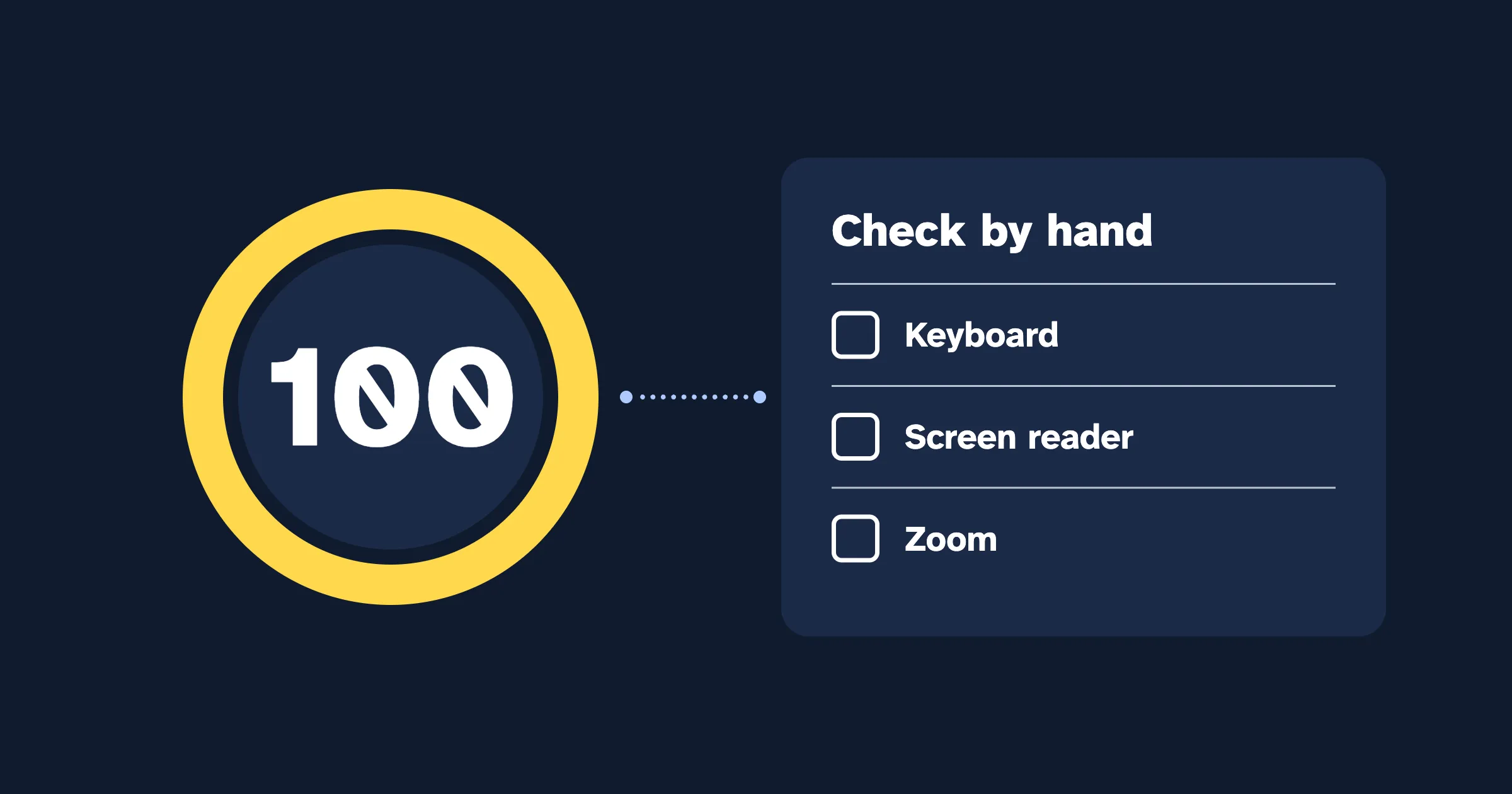
The Lighthouse accessibility score is a weighted average of around 60 automated pass-or-fail checks, from 0 to 100. A high score means those checks found nothing wrong on that page, at that moment. It doesn’t mean the page is accessible, because no automated check can tell whether your site works with a keyboard or whether your alt text makes sense. Here’s how the number is worked out, why it moves, how to fix the heaviest checks on a Shopify store, and what to test by hand.
What is the Lighthouse accessibility score?
Lighthouse is Google’s open-source tool for checking web pages, built into Chrome and PageSpeed Insights. Its accessibility checks come from axe-core, Deque’s open-source testing engine; Lighthouse 13.5, the current version as we write, uses axe-core 4.13.
A Lighthouse accessibility report has four parts:
- The score and the failing checks, grouped by theme: names and labels, contrast, navigation, ARIA and so on. Each failing check lists the elements that failed it.
- Additional items to manually check. Ten things Lighthouse can’t test, such as “The page has a logical tab order” and “User focus is not accidentally trapped in a region”. They don’t affect the score, which is exactly why they’re easy to skip.
- Passed audits. The checks that found nothing wrong.
- Not applicable. Checks that had nothing to test, such as the video captions check on a page with no video.
Lighthouse rates 90 and above as passing, 50 to 89 as average and anything lower as failing, and colors the score to match.
How is the score calculated?
Each check either passes or fails. Each one also has a weight, taken from how badly axe-core says a failure affects people:
| axe-core impact | Weight | Examples |
|---|---|---|
| Critical | 10 | Images without alt text, buttons and form fields without names, zoom turned off |
| Serious | 7 | Low-contrast text, links without names, small touch targets, a missing page title |
| Moderate | 3 | Headings out of order, no main landmark |
| Minor | 1 or 0 | A few low-impact checks count for 1; the rest count for nothing |
The score is the weight of the checks that passed, divided by the weight of all the checks that applied to the page. Checks marked not applicable and the items to check by hand are left out.
Say the checks that apply to your product page add up to a weight of 200. Missing alt text (10), low-contrast text (7) and headings out of order (3) fail. That’s 20 points of weight lost, so the page scores 180 ÷ 200 = 90.
Each check is all or nothing. As Chrome’s documentation puts it, “a page doesn’t get points for partially passing an accessibility audit.” Fix alt text on nine images out of ten and the image check still fails; the score moves only when the last one is fixed.
Why doesn’t a score of 100 mean the page is accessible?
Because the checks test what’s in the code, not whether it works for people. Lighthouse says so in its own report: “Automatic detection can only detect a subset of issues and does not guarantee the accessibility of your web app, so manual testing is also encouraged.”
Some examples of a page that scores 100 and still fails shoppers:
- Every product photo has the alt text “Leather tote”. The check sees alt text and passes.
- The focus outline was removed in the theme’s CSS, so keyboard users can’t see where they are. No automated check tests this; it’s one of the items to check by hand.
- The menu drawer traps keyboard focus, or the cart drawer never announces that an item was added. Lighthouse tests the page as it first loads, with drawers closed.
- A newsletter pop-up that opens after ten seconds has an unlabeled email field. It wasn’t on screen when Lighthouse looked.
Why does my score change between mobile and desktop, or between runs?
- Different layouts. Most themes show different elements on a phone: a menu button instead of a navigation bar, a different slideshow, tighter spacing. Different elements, different results.
- Changing content. Pop-ups, cookie banners, rotating slideshows, A/B tests, personalized recommendations and apps that load late can all be present on one run and missing on the next.
- Lighthouse updates. New versions of Lighthouse and axe-core add checks and refine old ones, so a score can drop without any change to your store.
Compare like with like: the same page, the same device, a couple of runs.
How do you run a Lighthouse accessibility check?
In Chrome DevTools
Open the page in Chrome and open DevTools (F12, or Cmd+Option+I on a Mac). Choose the Lighthouse panel, tick only Accessibility, pick Mobile or Desktop and select Analyze page load.
The panel also has a Snapshot mode, which tests the page as it is right now instead of reloading it. Open your menu drawer, cart drawer or a pop-up, then run a snapshot to check it in its open state.
In PageSpeed Insights
Go to pagespeed.web.dev, enter the address and select Analyze. You get mobile and desktop results, with accessibility alongside performance, best practices and SEO.
With our free website checker
The website accessibility checker runs the same Lighthouse checks through PageSpeed Insights and shows only the accessibility results. Enter a public page, choose Mobile or Desktop, and you get the score, the failing checks ordered by the points fixing each one would add, each check’s impact and WCAG criterion, the affected elements with their code, a short tip on how to fix it, and the items to check by hand. It only reaches pages anyone can open: if your store is password protected, it checks the password page.
How do you read a failing check and find the element?
Each failing check has a plain title, such as “Buttons do not have an accessible name”, and a list headed Failing Elements. Every element in the list comes with a small screenshot, a CSS selector and a piece of its HTML.
To find it on your page, right-click the element and choose Inspect. Or open DevTools’ Elements panel, press Ctrl+F (Cmd+F on a Mac) and paste the selector: the search box accepts selectors as well as text.
A class name with an app’s name in it usually means the problem comes from that app, and the fix belongs with its developer.
For Shopify stores
Find and fix accessibility issues on your store
CodeInspire Accessibility Tool adds an accessibility widget for your shoppers, audits your pages against WCAG, and gives you step-by-step fixes for your Shopify admin, theme editor or theme code.
Which checks matter most on a Shopify store, and how do you fix them?
These checks carry the most weight, and they test elements every Shopify store has: product photos, icon buttons, newsletter fields, color schemes and swatches. Each one lists its Lighthouse ID, its weight and the WCAG criterion it relates to.
image-alt (weight 10). Images with no alt attribute, usually in custom sections, app widgets or HTML pasted into pages. It relates to 1.1.1 Non-text Content, Level A. For product photos, add alt text in your admin: Products › select a product › select an image › Add alt text. Our guides cover what to write and how to do it for every product at once.
button-name (weight 10). Icon-only buttons with no text: slideshow arrows, pop-up close buttons, quantity plus and minus, wishlist hearts, search icons. A screen reader announces them as “button” and nothing else (4.1.2 Name, Role, Value, Level A). Give each one a name:
<button type="button" class="slideshow__next">
  <svg aria-hidden="true" focusable="false"><!-- arrow icon --></svg>
  <span class="visually-hidden">Next slide</span>
</button>
label and select-name (weight 10 each). Newsletter fields with only a placeholder, often in the footer or a pop-up, and drop-downs such as “Sort by” with no label (4.1.2 again). Placeholder text disappears as soon as someone types and isn’t a reliable name. Our guide to accessible forms covers the full pattern:
<label for="newsletter-email">Email address</label>
<input type="email" id="newsletter-email" name="contact[email]" autocomplete="email">
meta-viewport (weight 10). Zoom turned off on phones with user-scalable=no or a maximum-scale below 5, often added by custom code or an app. People with low vision need to zoom (1.4.4 Resize Text, Level AA). The tag only needs:
<meta name="viewport" content="width=device-width, initial-scale=1">color-contrast (weight 7). Text too pale for its background: sale prices, badges, announcement bars, footer links, placeholder text and text over images. 1.4.3 Contrast (Minimum), Level AA asks for 4.5:1 for normal text and 3:1 for large text (18 point, or 14 point bold). In Dawn (checked against Dawn 16), colors are set as color schemes in the theme editor under Theme settings › Colors; most themes have a similar setting. Test new pairs in the contrast checker before you save.
link-name (weight 7). Links with nothing to announce: social icons in the footer, a logo image with no alt text, empty links left behind by a theme customization. Each link needs text or alt text that says where it goes (2.4.4 Link Purpose (In Context), Level A, and 4.1.2).
target-size (weight 7). Touch targets that are small and packed together: color swatches, slideshow dots, close buttons. 2.5.8 Target Size (Minimum), Level AA asks for at least 24 by 24 CSS pixels, or enough space around smaller targets.
heading-order (weight 3). Headings that skip a level, often because a section’s heading level was picked for its size. This one is an axe-core best practice rather than a WCAG requirement, but screen reader users navigate by headings, so it’s worth fixing. Choose the level for structure and set the size with CSS.
Which Shopify pages should you check?
One page of each template, because a fix in a template usually fixes every page that uses it:
- The home page, where slideshows, pop-ups and app widgets pile up.
- A product page, ideally a best seller with variants and a video.
- A collection page, with filters and sorting.
- The cart. PageSpeed Insights and our checker load the page in a fresh browser, so they see an empty cart. Add a product, open the cart in Chrome and run a Lighthouse snapshot to test it with items in it.
- A page with a form, such as your contact page.
Shopify runs the checkout itself, so you can’t change its code from your theme.
What can’t Lighthouse check?
- Whether text alternatives are right. It checks that alt text exists, not that it describes the photo. An empty
alt=""passes, because that’s how decorative images are marked. - Keyboard use. Visible focus, a sensible tab order, no traps. Our keyboard guide shows a five-minute test, and focus indicators explains what a visible focus needs.
- Anything that appears after an interaction: menus, drawers, quick-add windows, pop-ups, error messages and “added to cart” announcements, unless you open them and run a snapshot.
- Text over images and gradients, where the contrast changes across the picture.
- Meaning. Whether link text, headings, labels and error messages make sense to a person.
- Captions and motion. Whether captions are accurate and whether moving content can be paused.
That’s what the ten items to check by hand are for.
What should you do next?
- Pick five pages: your home page, a best-selling product, a collection, the cart with something in it, and your contact page.
- Do the keyboard test on each one, using our keyboard guide. It takes about five minutes a page.
- Fix failing checks by weight, starting with the ones you can fix in the theme editor or your admin: alt text, colors, labels. Send app problems to the app’s developer.
- Run the free website accessibility checker on each page, on mobile and desktop, and work down its list. Run it again after each fix to see the score move.
Related guides
- Keyboard accessibility: how to test and fix your site
- WCAG color contrast requirements: ratios, rules and fixes
- Shopify store accessibility checklist
Frequently asked questions
Does a Lighthouse accessibility score of 100 mean my site is accessible?
No. It means every automated check that applied to that page passed when it was tested. Lighthouse can't tell whether alt text describes the image, whether everything works with a keyboard, or whether menus, drawers and pop-ups work with a screen reader. Lighthouse itself lists ten items to check by hand under every result.
How is the Lighthouse accessibility score calculated?
It's a weighted average of pass-or-fail checks run by the axe-core engine. Each check is weighted by how badly a failure affects people: 10 for critical, 7 for serious, 3 for moderate and 1 for some minor ones. The score is the weight of the checks that passed divided by the weight of all the checks that applied to the page. A check with even one failing element earns nothing.
Why is my Lighthouse accessibility score different on mobile and desktop?
Lighthouse tests the page as it appears on each device, and most themes show different elements on each: a menu button instead of a navigation bar, different images, tighter spacing. Pop-ups, slideshows, apps that load late and Lighthouse updates can also change the result from one run to the next.
What is a good Lighthouse accessibility score?
Lighthouse rates 90 and above as passing, 50 to 89 as average and below 50 as failing. Treat 90 or more as the point where the automated checks stop being your biggest problem, then test by hand. A higher score is worth having, but it's a measure of the automated checks only.
Can Lighthouse check my whole Shopify store at once?
No. Lighthouse checks one page at a time, as it looks when it first loads. Check one page of each type: the home page, a product, a collection, the cart and a page with a form. A fix in a template usually fixes every page that uses it.
Sources
- Chrome for Developers: Lighthouse accessibility scoring
- Lighthouse 13.5.0 source: accessibility audits and their weights (default-config.js)
- Lighthouse 13.5.0 source: how category scores are calculated (scoring.js)
- axe-core 4.13 rule descriptions
- Chrome for Developers: Introduction to Lighthouse
- Chrome for Developers: Lighthouse panel in DevTools
- Google: About PageSpeed Insights
- Understanding Success Criterion 1.1.1: Non-text Content
- Understanding Success Criterion 1.4.3: Contrast (Minimum)
- Understanding Success Criterion 1.4.4: Resize Text
- Understanding Success Criterion 2.4.4: Link Purpose (In Context)
- Understanding Success Criterion 2.5.8: Target Size (Minimum)
- Understanding Success Criterion 4.1.2: Name, Role, Value
- Shopify Help Center: Adding alt text to product media