Accessible forms: labels, errors and instructions that work
How to build accessible forms: visible labels, clear instructions, errors in text, the WCAG criteria behind them, and how Shopify's Dawn theme builds its forms.
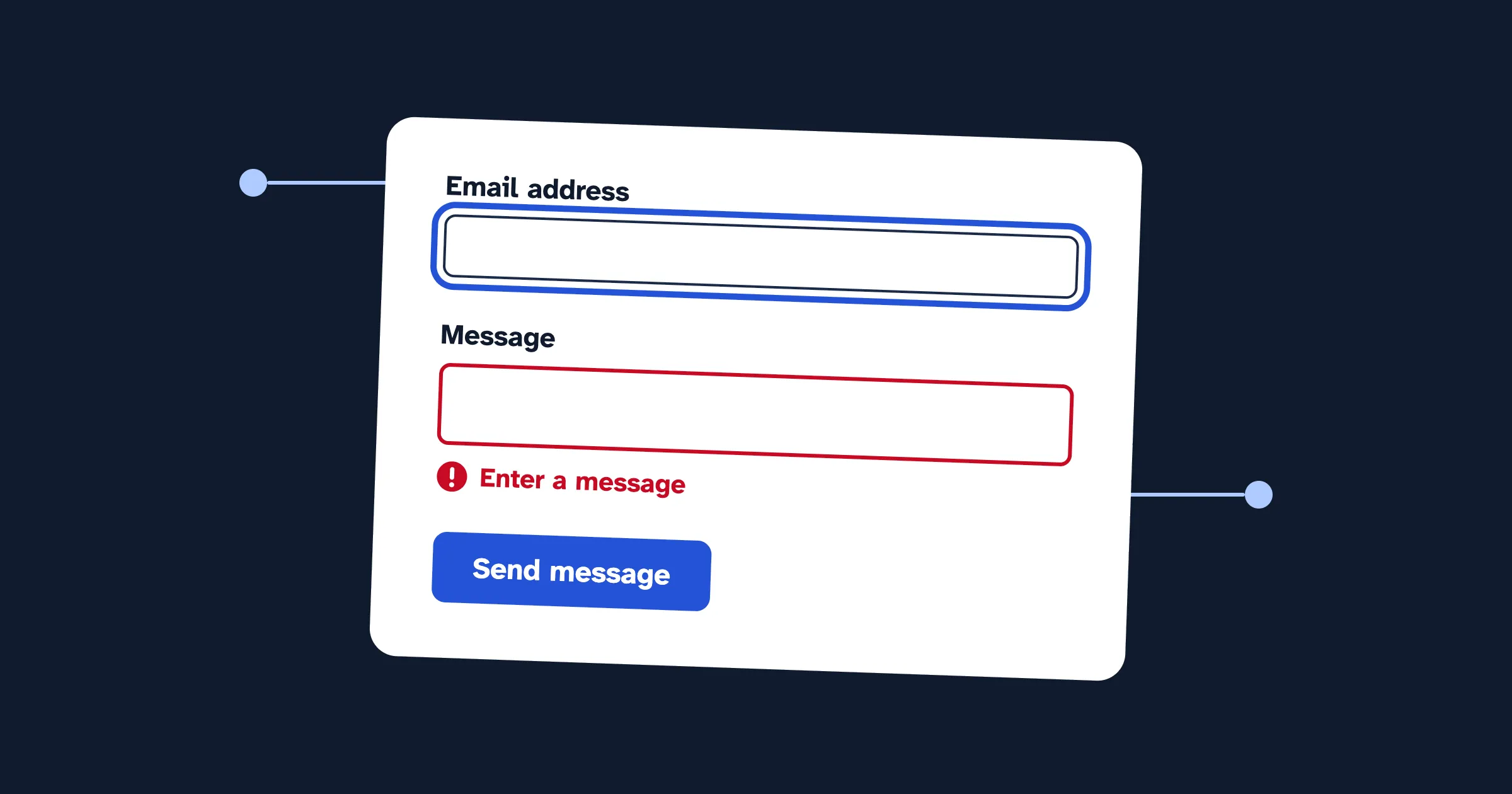
An accessible form gives every field a visible label tied to it in code, says what’s required before anyone starts typing, and describes each error in words next to the field that’s wrong. Most of that is plain HTML that browsers and screen readers already understand; forms break when design or scripts replace it. On a Shopify store, the forms you own are the newsletter signup, the contact page, pop-ups and form apps. Here’s the pattern, the WCAG criteria behind it, how Dawn builds its forms and a five-minute test.
Which WCAG criteria apply to forms?
A dozen WCAG 2.2 criteria apply to forms. The main ones:
- 1.3.1 Info and Relationships, Level A: labels, groups and required fields are tied to their fields in code.
- 1.3.5 Identify Input Purpose, Level AA: fields for the shopper’s own details say what they are in code, usually with
autocomplete. - 1.4.11 Non-text Contrast, Level AA: a border that’s the only sign of a field needs 3:1 contrast.
- 2.4.6 Headings and Labels, Level AA: labels describe what to enter.
- 2.5.3 Label in Name, Level A: a control’s name in code contains its visible text, so a voice-control user can say “click Subscribe”.
- 3.3.1 Error Identification, Level A: errors name the field and are described in text.
- 3.3.2 Labels or Instructions, Level A: every input has a label or instructions.
- 3.3.3 Error Suggestion, Level AA: if you know the fix, say it.
- 3.3.7 Redundant Entry, Level A: don’t ask for the same thing twice in one process.
- 3.3.8 Accessible Authentication (Minimum), Level AA: signing in can’t depend on memory or retyping without help.
- 4.1.2 Name, Role, Value, Level A: every control has a name, role and state that assistive technology can read.
- 4.1.3 Status Messages, Level AA: messages that appear without a page load are announced without moving focus.
How do you label a form field?
With a label element whose for matches the field’s id. A screen reader reads it when the field gets focus, and clicking it puts the cursor in the field. A newsletter signup that gets it right:
<form action="/subscribe" method="post">
  <label for="signup-email">Email address</label>
  <input type="email" id="signup-email" name="email" autocomplete="email" required>
  <button type="submit">Subscribe</button>
</form>
type="email" brings up the email keyboard on phones. autocomplete="email" lets the browser fill in the address, a real help for people with motor or memory difficulties. And the button says “Subscribe” in text, so its name and its visible label match.
Why isn’t a placeholder a label?
A field with only gray placeholder text inside it looks tidy, but the W3C’s forms tutorial is blunt: “placeholder text is not a replacement for labels.” It disappears as soon as someone types, so they can’t check what the field asked for. It’s usually too faint to read. And not every screen reader announces it. Keep a placeholder only for an example, such as name@example.com, and keep the real label visible.
How do you show required fields and help text?
Say it in text, before the form starts, and mark each field in code:
<p>All fields are required unless they say "optional".</p>

<form action="/contact" method="post">
  <label for="contact-name">Name</label>
  <input id="contact-name" name="name" autocomplete="name" required>

  <label for="contact-email">Email</label>
  <input id="contact-email" name="email" type="email" autocomplete="email" required>

  <label for="contact-order">Order number (optional)</label>
  <p id="contact-order-hint">It's in your confirmation email and starts with #.</p>
  <input id="contact-order" name="order" aria-describedby="contact-order-hint">

  <fieldset>
    <legend>How should we reply?</legend>
    <input type="radio" id="reply-email" name="reply" value="email" checked>
    <label for="reply-email">By email</label>
    <input type="radio" id="reply-phone" name="reply" value="phone">
    <label for="reply-phone">By phone</label>
  </fieldset>

  <label for="contact-message">Message</label>
  <textarea id="contact-message" name="message" rows="6" required></textarea>

  <button type="submit">Send message</button>
</form>- The note above the form states the rule once. If you use asterisks instead, explain them there.
requiredmakes screen readers say “required” with each field’s name.- The hint sits before the field, so sighted shoppers see it before typing, and
aria-describedbymakes a screen reader read it after the label. - The
fieldsetandlegendname the radio group. Without them, a screen reader hears “By email, radio button” with no question. autocompleteuses the tokens in WCAG’s input purposes list:name,email,tel,postal-codeand more.
Fields need a visible border too. A faint gray line fails 1.4.11 when it’s the only sign a field exists:
input,
textarea {
  border: 2px solid #6b7280; /* 4.8:1 on white */
}

input:focus-visible,
textarea:focus-visible {
  outline: 3px solid #2453d6;
  outline-offset: 3px;
}
How should form errors work?
Errors are where a form loses people: a shopper presses Send, a field turns red, and nothing says why. What helps, drawn from 3.3.1, 3.3.3 and the W3C’s notifications tutorial:
- Describe the error in text, next to the field. “Enter an email address in the format
name@example.com” beats “Invalid input”, and both beat a red border. - Tie the message to the field with
aria-describedby, and addaria-invalid="true", so a screen reader says the field is invalid and reads the message. - List every error at the top of longer forms, linked to each field, and move focus to that list after the page reloads.
- Put “Error” in the page title, such as “Error: Contact us”. Screen readers announce the title on load.
- Keep what people typed.
- Never use color alone. Add an icon and words.
<div class="error-summary" tabindex="-1">
  <h2>There are 2 problems with your message</h2>
  <ul>
    <li><a href="#contact-email">Enter an email address in the format name@example.com</a></li>
    <li><a href="#contact-message">Enter a message</a></li>
  </ul>
</div>

<label for="contact-email">Email</label>
<p class="field-error" id="contact-email-error">
  <span class="visually-hidden">Error:</span>
  Enter an email address in the format name@example.com
</p>
<input id="contact-email" name="email" type="email" autocomplete="email"
       value="jane.example.com" required
       aria-invalid="true" aria-describedby="contact-email-error">
Success matters as much. After a page reload, show the confirmation as a heading near the form and move focus to it. If the form submits without reloading, put the message in an element with role="status", so a screen reader announces it without moving focus (4.1.3).
What about sign-in forms, passwords and CAPTCHAs?
3.3.8 Accessible Authentication (Minimum) is new in WCAG 2.2. Remembering a password or retyping a code counts as a “cognitive function test”, which is allowed only when there’s help, such as paste or a password manager, or another way to sign in. In practice: never block paste in a password or code field, and mark fields so password managers can fill them, with autocomplete="current-password" to sign in and autocomplete="new-password" to create an account. For codes sent by email or text message, the HTML token one-time-code (MDN) lets phones offer the code from the message.
On Shopify, sign-in now sits with Shopify. Dawn 16 removed the legacy customer account pages; the account icon opens Shopify’s customer accounts, where shoppers sign in by default with a one-time six-digit code sent by email, not a password. Try it on your store, including pasting the code, and tell Shopify Support if something gets in the way.
3.3.7 Redundant Entry applies to multi-step forms you build, such as a wholesale application: if step one asked for a company name, fill it in later rather than asking again.
CAPTCHAs. Shopify’s spam protection uses hCaptcha, on by default for contact, newsletter signup and comment forms. It checks visitors in the background and sends only those it finds suspicious to a challenge with a puzzle or an “I’m a human” checkbox. That’s kinder than a puzzle on every form, so keep it rather than adding a second, visible CAPTCHA from an app.
How does Dawn build its forms?
Checked against Dawn 16, Shopify’s open-source theme. The newsletter signup (the Email signup section and the footer signup) and the contact form hold up well:
- Every field has a real
labeltied withforandid. Dawn uses floating labels: the label sits inside the field, then shrinks and moves up once the field has focus or a value. The placeholder repeats the label’s text, but Dawn hides it and uses it only to decide when to move the label. - Fields have
autocomplete:emailon the signups;name,emailandtelon the contact form. - Errors are described in text with an icon, and the field gets
aria-invalidandaria-describedbypointing at the message. - The contact form has an error summary. After a failed submit, a “Please adjust the following:” heading gets focus, followed by links from each error to its field.
- Success messages get focus as headings when the page reloads.
What to watch:
- The floated label is small: 10 pixels at Dawn’s default font scale once a shopper types. Check it’s readable on a phone.
- The phone field rejects international formats. Its pattern allows only digits and hyphens, so “+44 20 7946 0000” is blocked with the browser’s generic message about matching the requested format. If you sell abroad, ask a developer to relax the pattern.
- The asterisk isn’t explained. The contact form’s email label has an asterisk (hidden from screen readers, which hear “required” instead), but no text tells sighted shoppers what it means. Add a line above the form.
- The newsletter button is an arrow icon named “Subscribe” in code. A screen reader reads the name; a voice-control user has to guess it. A text button is clearer.
For Shopify stores
Find and fix accessibility issues on your store
CodeInspire Accessibility Tool adds an accessibility widget for your shoppers, audits your pages against WCAG, and gives you step-by-step fixes for your Shopify admin, theme editor or theme code.
What about pop-ups, form apps and checkout?
Pop-up signups and form builders usually come from apps, and their quality varies. Ask the vendor: Does every field have a visible label tied to it? Are errors described in text next to the field? Does the pop-up move focus inside when it opens, close with Escape and return focus when it closes? The keyboard accessibility guide covers that last one.
Checkout is Shopify’s. Shopify runs it for every store and publishes an accessibility conformance report for it.
How do you test a form in five minutes?
- Keyboard. Tab through the form. Every field, option and button should show a focus ring, in a sensible order. Choose radio buttons with the arrow keys and submit with Enter.
- Submit it empty. Does each error say what’s wrong in words? Does focus move to the errors? Is what you typed still there?
- Fill it in wrong. Type an email with no @ and a phone number with a + sign. Do the messages say how to fix it?
- Screen reader. VoiceOver is built into every Mac (Cmd+F5) and iPhone; NVDA is free for Windows. Each field should announce its label, “required” where it applies, and its hint. After submitting, you should hear the error or success message.
- Zoom to 200%. Labels, fields and errors shouldn’t overlap or get cut off.
For the markup, paste the form’s HTML into the free HTML accessibility checker. It flags fields with no label, placeholder-only labels and buttons with no name, and it runs in your browser, so nothing you paste is sent anywhere.
What can’t a tool tell you?
- Whether a label makes sense. “Field 1” is a label, not a useful one.
- What happens when you submit. Automated checks don’t type wrong answers or press Send.
- Whether error messages say how to fix the problem.
- Whether a pop-up lets focus escape behind it.
- Whether the floated label or error text is readable on a real phone.
What should you do next?
- Run the five-minute test on your newsletter signup and contact page, on desktop and on a phone.
- Fix what you can today: add a note about required fields, replace placeholder-only labels, and check the input border setting.
- List what’s left for your developer or app vendor, with the WCAG criterion next to each item.
- Run the free website accessibility checker on your contact page to catch missing labels and low-contrast text, then work through its list of checks to do by hand.
Related guides
- Keyboard accessibility: how to test and fix your site
- Focus indicators: what WCAG 2.2 asks for and how to style them
- Shopify store accessibility checklist
Frequently asked questions
Is placeholder text enough as a label?
No. Placeholder text disappears as soon as someone starts typing, is usually too faint to read, and isn't treated as a label by every screen reader. Give every field a visible label element tied to it with for and id. Keep a placeholder only for an example of what to type, if you need one at all.
Do floating labels meet WCAG?
They can. A floating label that is a real label element, stays visible after the shopper types, and stays readable when it shrinks is fine. A label that is really a placeholder, or that shrinks to tiny low-contrast text, causes problems. Test it by filling in the field and checking you can still read what it asks for.
Where should form error messages go?
Next to the field that's wrong, in text, tied to the field with aria-describedby so a screen reader reads it with the field. On longer forms, also list every error at the top of the form with links to each field, and move keyboard focus to that list after the shopper submits.
Should I use the required attribute or aria-required?
Either tells a screen reader the field is required. The required attribute also makes the browser block an empty submit with its own message. If you show your own error messages instead, add novalidate to the form and keep required or aria-required on the field. Either way, say which fields are required in visible text too.
Is Shopify checkout's accessibility my job?
Shopify builds and runs checkout, and publishes an accessibility conformance report for it. The forms you own are the ones in your theme and apps: newsletter signups, the contact page, pop-ups and form apps. Test those yourself.
Sources
- Understanding Success Criterion 1.3.1: Info and Relationships
- Understanding Success Criterion 1.3.5: Identify Input Purpose
- WCAG 2.2: Input Purposes for User Interface Components
- Understanding Success Criterion 1.4.11: Non-text Contrast
- Understanding Success Criterion 2.4.6: Headings and Labels
- Understanding Success Criterion 2.5.3: Label in Name
- Understanding Success Criterion 3.3.1: Error Identification
- Understanding Success Criterion 3.3.2: Labels or Instructions
- Understanding Success Criterion 3.3.3: Error Suggestion
- Understanding Success Criterion 3.3.7: Redundant Entry
- Understanding Success Criterion 3.3.8: Accessible Authentication (Minimum)
- Understanding Success Criterion 4.1.2: Name, Role, Value
- Understanding Success Criterion 4.1.3: Status Messages
- W3C WAI Forms Tutorial: Form Instructions
- W3C WAI Forms Tutorial: User Notifications
- MDN: The autocomplete HTML attribute
- Shopify: Dawn theme source code (GitHub)
- Shopify: Dawn 16.0.0 release notes
- Shopify Help Center: Customer accounts
- Shopify Help Center: Setting your online store preferences (spam protection)
- Shopify Accessibility Conformance Report: Shopify Checkout